

SEO for WooCommerce: 30 Moves to Get Found, Get Clicked, and Get Sales
01 April 2026
Anna P.
15 minutes
Organic search still drives 43% of all ecommerce traffic, and Google Shopping CPCs increased 15% year-over-year. (Search Engine Land) Every month you're not investing in WooCommerce SEO, you're paying more for traffic that should be free.
This guide cuts straight to what works. 30 actionable hacks — covering technical SEO, on-page optimization, site speed, schema markup, and keyword strategy — that you can start applying to your WooCommerce store today.
Foundation: Plugins and Setup

Many WooCommerce stores skip the setup stage and jump straight into publishing products — which means they're building on a broken SEO foundation. Before any optimization tactic makes sense, you need the right tools connected and configured correctly. These four steps come first.
1. Install a Dedicated WooCommerce SEO Plugin First
Before anything else, install a powerful SEO plugin built for WooCommerce. Without one, you're missing the technical infrastructure that makes everything else possible — schema markup, XML sitemaps, meta descriptions, title tag control, and more.
The two best WordPress SEO plugins for WooCommerce stores:
Yoast SEO — the most widely used WordPress SEO plugin, with a dedicated Yoast WooCommerce SEO bundle that handles product schema, breadcrumbs, and Pinterest Rich Pins automatically. The Yoast WooCommerce SEO bundle costs $118.80/year and includes Yoast SEO Premium bundled in — no separate purchase required.
Rank Math — a powerful SEO plugin with built-in WooCommerce support on the free plan. Rank Math automatically pulls data from your WooCommerce products to include in Product Schema and increases the likelihood of featuring rich snippets in search results. Strong choice if you want more features without paying for add-ons.
Both are excellent. Pick one, configure it fully, and don't switch — consistency in your SEO settings matters.
2. Connect Google Search Console Immediately
Google Search Console is the most valuable free tool available for WooCommerce SEO. It shows you exactly which search queries are bringing traffic to your online store, which product and category pages are indexed, which have errors, and where your keyword rankings sit.
Submit your XML sitemap — auto-generated by Yoast or Rank Math — via Google Search Console as soon as your store is live. This accelerates indexing and gives Google a clear map of every product page, category page, and post on your WooCommerce site.
3. Set Up Google Analytics with Enhanced Ecommerce Tracking
Standard Google Analytics shows you traffic. Enhanced ecommerce tracking shows you which products are being viewed, added to cart, and purchased — and where shoppers are dropping off in the checkout process. This is the data that connects your SEO performance to actual revenue.
With WooCommerce websites, you need to set up enhanced tracking to pass key actions — like add to cart, checkout initiation, and purchase — into Google Analytics as events. The MonsterInsights plugin handles this without touching code.
4. Configure Your SEO Settings Before Publishing Products
Many store owners build their product catalog first and think about SEO settings second. Reverse this. Before adding products, configure your SEO plugin's global settings: title tag format, meta description templates, which page types get indexed, and your breadcrumb structure. Doing this after the fact means fixing dozens or hundreds of pages individually.
Running a Shopify store? Read: Shopify SEO: 30 Hacks to Rank Higher
Keyword Research: Finding What Your Customers Search For
Keyword research is where some WooCommerce store owners either skip entirely or do it once and never revisit. The stores that rank consistently treat keyword research as an ongoing process — mapping specific terms to specific pages and updating that map as search volume and competition shift. These four hacks set you up to do it right.
5. Do Keyword Research Before Writing a Single Product Description
The biggest wasted effort in WooCommerce SEO is optimizing product pages for terms nobody searches for. Use Google Keyword Planner, Ahrefs, or Semrush to find the exact language your potential customers use when searching for products like yours.
For each product, identify:
A primary keyword (the main search term)
Two to three secondary keywords (related variations)
Long tail keywords (specific phrases with lower search volume but higher purchase intent — "waterproof hiking boots for women size 8" converts better than "hiking boots")
6. Target Long Tail Keywords on Product Pages
Long tail keywords convert better because they reflect purchase intent. Someone searching "buy organic turmeric capsules 500mg" is much closer to completing a purchase than someone searching "turmeric." Product pages targeting long-tail keywords rank faster, face less competition, and bring in traffic that actually buys.
7. Use Category Pages for Broad Keywords
Category pages often rank for broader keywords that individual product pages cannot. A well-optimized "Women's Running Shoes" category page can outrank individual product pages for that term.
Map your keyword strategy accordingly: broad, high-volume terms belong on category pages; specific, purchase-intent terms belong on product pages. This prevents your own pages from competing against each other in search engine results.
8. Analyze Competitors' Ranking Pages
Before writing a product description or category page, search your target keyword and study the top three results in search engine results pages.
What structure do they use?
How long are the descriptions?
What questions do they answer?
Your page needs to be more useful than what's already ranking — not just similar to it.
On-Page SEO: Product and Category Pages

Your product and category pages are where WooCommerce SEO wins or loses. Every page is a potential entry point from organic search — and most stores have dozens or hundreds of them sitting underoptimized. The hacks below cover every on-page element that moves rankings, from descriptions and title tags to internal links and URL structure.
9. Write Unique Product Descriptions — Never Use Manufacturer Copy
Using manufacturer descriptions is one of the most common and damaging WooCommerce SEO mistakes. Every other store selling the same product has the same text — which creates duplicate content across the web and gives Google no reason to rank your page over theirs.
Write unique descriptions for every product. Include the primary keyword naturally, explain the product's value (not just its features), and address the questions a buyer has before purchasing. Minimum 200 words per product page.
10. Optimize Every SEO Title and Meta Description
Your SEO title and meta description are what appear in search engine results pages. They determine whether someone clicks your link or the one above or below it. Every product page and category page needs a manually optimized title tag and meta description — not just the auto-generated version.
Title tag formula: Primary Keyword — Product Name | Store Name (keep under 60 characters).
Meta description: Lead with the benefit, include the target keyword, end with a soft call to action. Under 155 characters.
Some long-standing best practices suggest sticking to the format above, while others suggest using the available space (titles up to 90 characters and descriptions up to 200) to the fullest.
Yoast SEO and Rank Math both give you field-level control over titles and meta descriptions from within the WordPress dashboard.
11. Optimize Your Product URLs
Clean, keyword-rich URLs are both a ranking factor and a trust signal for shoppers. WooCommerce defaults to including "/product/" in every URL. Depending on your store structure, this can create unnecessarily long URL paths.
Keep URLs short and descriptive: yourstore.com/waterproof-hiking-boots, not yourstore.com/product/category/footwear/waterproof-hiking-boots-blue-size-8. Configure your permalink settings in the WordPress dashboard under Settings > Permalinks.
12. Use Your Focus Keyword in the First 100 Words
Search engines weight early placement of your target keyword. In both Yoast WooCommerce SEO and Rank Math, the focus keyword field tells the plugin which term to check for — but you need to actually place it near the top of your product description, not just somewhere in the body.
13. Add Secondary Keywords Naturally Throughout
After placing your primary keyword, weave secondary keywords and synonyms throughout the description naturally. Google's understanding of language means it recognizes related terms — using only one exact phrase repeatedly is less effective and reads poorly.
14. Write Unique Category Page Descriptions
Many WooCommerce stores leave category page descriptions blank. This is a missed opportunity — category pages can rank for high-volume competitive terms if they have enough relevant content.
Add a unique category description of 200–500 words above or below the product grid, incorporating your target keywords naturally. This is one of the fastest ways to improve search visibility on pages that already have domain authority behind them.
15. Use Internal Links Between Related Products and Categories
Internal links pass authority between pages and help search engines understand the structure of your WooCommerce site.
Link from product descriptions to related products.
Link from category page content to top-performing product pages.
Link from blog posts to relevant category and product pages.
Internal linking helps visitors find related content and can boost ranking criteria like session duration, while also helping search engines better understand how your content is related.
Technical SEO: Infrastructure That Determines Rankings

Technical SEO is the layer some store owners avoid because it feels invisible — but it's the layer that determines whether all the on-page work you do gets indexed, crawled, and ranked. These hacks cover the technical foundations your WooCommerce site needs to compete in organic search results.
16. Fix Core Web Vitals — This Is a Confirmed Ranking Factor
Core Web Vitals are Google's page experience signals: Largest Contentful Paint (LCP — how fast the main content loads), Cumulative Layout Shift (CLS — visual stability), and Interaction to Next Paint (INP — responsiveness). All three are confirmed ranking factors.
Check your WooCommerce store's Core Web Vitals in Google Search Console under Experience > Core Web Vitals. Pages marked "Poor" are being penalized in search rankings. Fix them before working on anything else.
17. Implement Schema Markup for Product Rich Snippets
Schema markup is structured data that tells search engines exactly what your product data means — price, availability, reviews, and ratings. When implemented correctly, this data can appear directly in search results as rich snippets: star ratings, pricing, and stock status visible before anyone clicks.
Schema markup translates your product data — like pricing, stock status, and shipping — into a format Google understands, enabling rich snippets with star ratings and prices directly in search results.
Both Yoast WooCommerce SEO and Rank Math add product schema markup automatically when properly configured. Verify your implementation using Google's Rich Results Test tool.
18. Generate and Submit an XML Sitemap
Your XML sitemap tells search engines every page on your WooCommerce site that should be indexed. Yoast SEO and Rank Math both generate sitemaps automatically — submit yours to Google Search Console and Bing Webmaster Tools to ensure all your product pages, category pages, and posts are being crawled.
19. Fix Duplicate Content Issues
WooCommerce generates duplicate content problems by default — the same product appearing under multiple category URLs, tag pages creating thin content, and paginated URLs being treated as separate pages. Left unaddressed, this dilutes your search rankings across multiple versions of the same page.
Use canonical tags — automatically managed by Yoast or Rank Math — to tell Google which version of each URL is authoritative. Noindex low-value tag pages and paginated pages beyond page one.
20. Redirect Out-of-Stock and Discontinued Product Pages
If you delete an out-of-stock product page, it creates a 404 error, which tells Google your site is broken. Instead, redirect the URL of a discontinued product to a similar category page or a newer version of the product — this preserves your rankings and keeps customers on your site.
Use the Redirection plugin or the redirect manager in Yoast Premium or Rank Math to manage 301 redirects without touching code.
21. Find and Fix Broken Links
Broken internal links — links pointing to pages that no longer exist — waste crawl budget and create a poor experience for both search engines and visitors. Use Screaming Frog, Ahrefs, or the free Broken Link Checker plugin to audit your WooCommerce site and fix any broken links regularly.
22. Install an SSL Certificate
HTTPS is a confirmed Google ranking factor, and any WooCommerce store without SSL will show a "Not Secure" warning in browsers — which damages both search rankings and conversion rates. Most hosting providers include free SSL via Let's Encrypt. Verify your certificate is active and all URLs are correctly redirecting from HTTP to HTTPS.
Site Speed: SEO Factor You Might Be Underestimating

A slow WooCommerce store is losing ground on conversion and rankings every day. The hacks below address the most common causes of slow load times — most of which can be fixed without a developer.
23. Speed Is a Crucial Ranking Factor — Treat It That Way
Site speed is a ranking factor and directly impacts conversions. A one-second delay in page load time reduces conversions by 7% on average. (BigCommerce) For a WooCommerce store doing $50,000/month in revenue, that's $3,500/month in lost sales — plus the SEO penalty on top.
Start with a caching plugin: WP Rocket is the most effective paid option ($59/year). W3 Total Cache is a capable free alternative.
24. Use a Content Delivery Network
A content delivery network serves your WooCommerce site's static assets — images, CSS, JavaScript — from servers close to each visitor's physical location, reducing load times globally. Cloudflare's free plan is a strong starting point. Bunny CDN offers better performance at low cost for stores with international traffic.
25. Compress and Properly Size Product Images
Unoptimized product images are the single most common cause of slow WooCommerce stores. Large image files slow down page load times, hurt Core Web Vitals scores, and damage search rankings.
Use Smush or ShortPixel to automatically compress images on upload. Serve images in WebP format where possible — it's 25–35% smaller than JPEG at equivalent quality. Set image dimensions before uploading rather than letting WordPress resize them after the fact.
26. Optimize Image Alt Text in the WordPress Media Library
Image alt text tells search engines what your product images depict — improving image search visibility — and provides accessibility context for screen readers.
Include the focus keyword in the product image's alt text to increase the likelihood of appearing in image search results. Use the WordPress media library to edit alt text on existing images. Name image files descriptively before uploading — "blue-waterproof-hiking-boot.jpg" outperforms "IMG_4832.jpg" in image search.
Advanced SEO: Going Beyond the Basics
Once the foundation is solid and your product and category pages are optimized, the next step of WooCommerce SEO is about compounding what you've built — through content, local search engine visibility, regular audits, and solving the conversion problem that rankings alone can't fix.
27. Build a Content Strategy Around Your Category Keywords
Product pages rank for purchase-intent keywords. Blog content ranks for informational keywords — and captures potential customers earlier in the buying process.
A WooCommerce store selling coffee equipment should publish guides on "how to use a French press," "best coffee grind for espresso," and "burr grinder vs blade grinder." These articles rank for informational searches, build topical authority, and link naturally to product pages. This is how organic traffic compounds over time.
28. Optimize for Local SEO If You Have a Physical Presence
If your WooCommerce store has a physical location or serves a specific geographic area, local SEO is a separate and significant opportunity. Claim and optimize your Google Business Profile. Include your location, opening hours, and phone number consistently across your site and all directories. Add local schema markup using your SEO plugin.
Local SEO targets searches with geographic intent — "coffee equipment store London" — where local results appear above organic results. Competing in this space requires different tactics than standard product page SEO.
29. Run Regular SEO Audits to Catch Emerging Issues
WooCommerce stores accumulate technical issues over time: new broken links, newly duplicated content, crawl errors from product URL changes, and pages that have dropped in search rankings. A quarterly SEO audit catches these issues before they compound.
Use Screaming Frog for a full site crawl, Google Search Console for indexing and Core Web Vitals issues, and your SEO plugin's built-in audit tools for on-page optimization gaps. Track keyword rankings with Semrush or Ahrefs to monitor search engine results over time and identify pages dropping from page one before the traffic loss becomes significant.
30. Solve the Conversion Gap That SEO Alone Can't Fix
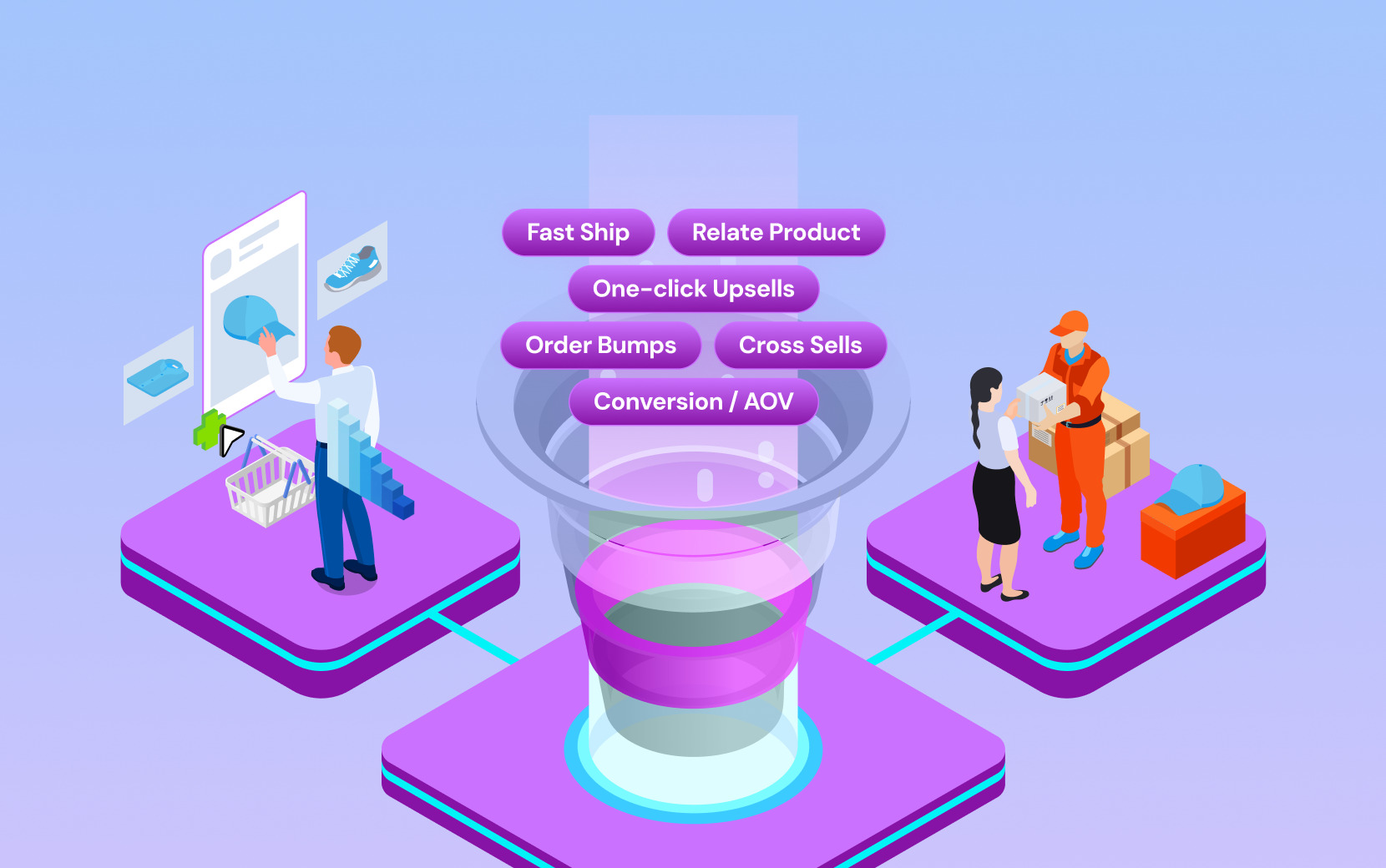
SEO for WooCommerce drives traffic to your product pages and category pages. What happens after a visitor arrives is a separate problem — one that general WooCommerce SEO guides don't address.
WooCommerce's default checkout is multi-step, slow to load, and not designed for the conversion rates that paid traffic demands. If you're investing in SEO and ads but your conversion rate is weak, the issue isn't your search rankings — it might be your checkout and post-purchase infrastructure.
You can use Funnelish to solve this problem that WooCommerce can't solve natively. Funnelish's page builder creates sub-second landing pages designed for conversion, with a one-page checkout experience that removes the friction points where WooCommerce loses buyers.
Post-purchase one-click upsells, abandoned cart sequences, and geo-funnels that adapt content, currency, and payment methods by visitor location all run natively — no external automation tools required. SEO brings the traffic. Funnelish makes sure that traffic converts.
Start your free 14-day Funnelish trial →
WooCommerce SEO FAQs
How to do SEO for WooCommerce?
Effective WooCommerce SEO starts with three aspects working together.
First, the technical foundation: install a powerful SEO plugin (Yoast or Rank Math), connect Google Search Console and Google Analytics, fix Core Web Vitals issues, implement schema markup for rich snippets, and ensure your site loads fast.
Second, on-page optimization: do keyword research before writing product and category page content, write unique descriptions with target keywords placed naturally, optimize every title tag and meta description, and build internal links between related pages.
Third, content and authority: publish blog content targeting informational keywords that bring potential customers in earlier in the buying journey, and earn backlinks by creating genuinely useful resources.
The order matters — fix technical issues first, then optimize existing pages, then build content.
What is the best SEO plugin for WooCommerce?
The two best options are Yoast WooCommerce SEO and Rank Math. Yoast WooCommerce SEO automatically adds rich structured data to your product pages so Google can display price, availability, and reviews, generates a custom WooCommerce XML sitemap that skips junk pages like cart and checkout, and includes AI tools that generate SEO-friendly titles and descriptions for product and category pages.
Rank Math is a strong free alternative with built-in WooCommerce support that handles product schema markup automatically on the free plan. For many WooCommerce stores, either plugin handles the full range of technical and on-page SEO needs. The best SEO plugin is whichever one you configure completely and maintain consistently.
Which is better for SEO, Shopify or WooCommerce?
Both platforms are capable of excellent search engine rankings — the platform rarely determines SEO success; execution does. WooCommerce gives you more control over technical SEO through plugins, custom code, and hosting configuration. It also runs on WordPress, which has a mature content publishing infrastructure that makes content-driven SEO strategies easier to execute.
Shopify is more constrained but simpler to manage — you rely on apps for SEO functionality rather than configuring it directly. Where WooCommerce has an advantage is customization depth and the ability to build exactly the SEO setup you need. Where Shopify has an advantage is that the technical foundation is managed for you, meaning fewer things go wrong without you noticing.
For serious long-term SEO investment, WooCommerce's flexibility tends to produce better results — but only when that flexibility is used well.
Read more: WooCommerce vs Shopify in 2026
Table of contents
Boost your eCommerce
sales today

24/7 support
No credit card required
Cancel anytime
24/7 support
No credit card required
Cancel anytime
